
Pinco for PC: Free download for Windows and macOS

The Pinco desktop application gives you live casino, roulette, slots, table games, and sports in one place. Download the desktop app for Windows or macOS at no cost and enjoy the same features as the website plus faster loading and a focused full-screen view.

Pinco desktop app: live casino, roulette, slots, table games, and sports. Free for Windows and macOS with faster loading.

Pinco download for PC: desktop client at a glance

The PC app delivers fast gameplay, stable performance, and crisp full-screen betting.

Available Languages English (Canada), French (Canada), Spanish, Portuguese, German
Category Sports betting, Online Casino, Live Casino, Slots, Table Games, Game Shows
Compatible with Windows Windows 10 and 11 (64-bit)
Compatible with macOS macOS 11 Big Sur, 12 Monterey, 13 Ventura, 14 Sonoma

Pros and cons of the Pinco app for PC

Installing the desktop client offers speed and focus, but it adds one more program to your computer. Here is a quick look at the trade-offs.

Pros Cons
Faster load times on slow internet Requires installation and disk space
Stable long sessions for live tables Updates may prompt a restart
Full-screen interface for games and stats Works on Windows 10/11 and modern macOS only
One-click login and quick bet slip
Fewer browser crashes or pop-ups
Auto updates keep features current
Keyboard shortcuts for search and deposit

Pinco app for Windows: download and install

The Windows application runs on most modern PCs and needs only a stable internet connection, 4 GB RAM, and about 1 GB of free space. You can download Pinco for Windows 10 or 11 in minutes. Supported systems include Windows 10 and 11, 64-bit.

1

Start here

Click the button below to create your account and get the Windows installer.

Start using!
2

Save the file

Download to your computer and keep it in the Downloads folder.

3

Run the installer

Double-click the file and confirm any security prompts.

4

Choose location

Pick the install folder and proceed.

5

Finish setup

Launch the app when installation completes.

6

Log in

Enter your email and password, or use the quick login link from your inbox.

7

Secure your account

Enable 2FA in Settings if available.

Download and install on Mac: desktop app guide

Pinco runs on Intel and Apple silicon Macs and supports current macOS versions. Setup is quick on MacBook and iMac alike.

1

Start here

Click the button below to register and get the macOS download.

Start using!
2

Save the file

Open the .dmg from Downloads.

3

Drag to Applications

Move the app icon into Applications.

4

Allow launch

If macOS blocks the app, go to System Settings > Privacy & Security, then select Open Anyway.

5

Open the app

Find it in Applications or Spotlight and launch.

6

Log in

Enter your account details and set preferences.

Keep the PC client up to date

The Pinco PC app benefits from updates that add features, improve stability, and refresh casino content. Running the latest version helps keep play smooth and secure.

1

Open the desktop icon

Launch the app to reach the betting lobby.

2

Check for update

Go to Menu > Settings > Updates and select Check Now.

3

Download and install

Approve the update and wait for the progress bar to finish.

4

Restart the app

Close and reopen to apply changes.

Register and start betting in the PC app

Create your account in a few minutes and access sports, live casino, and slots. New users get platform bonuses, loyalty points, and fast withdrawals after verification.

1

Open the app on your computer

Launch from the desktop or Applications.

2

Click Sign Up

Choose email, phone, or social sign-in if offered, then fill in your info.

3

Confirm details

Verify email or phone and set a strong password, then add two-factor authentication if available.

4

Set limits

Pick deposit and play limits under Responsible Gambling.

Prefer the website? Play in your browser

You do not need the PC app to enjoy the full platform. The Pinco website includes all betting markets, casino games, banking, and support. Performance in modern browsers is strong on most computers. If you prefer a lighter setup, sign in on the site and play as usual.

Pinco platform shown in a web browser on a laptop, highlighting betting, casino, banking, and support—no app required.

Support for desktop users in Canada

Help is available every day for desktop players. Choose the option that fits your question.

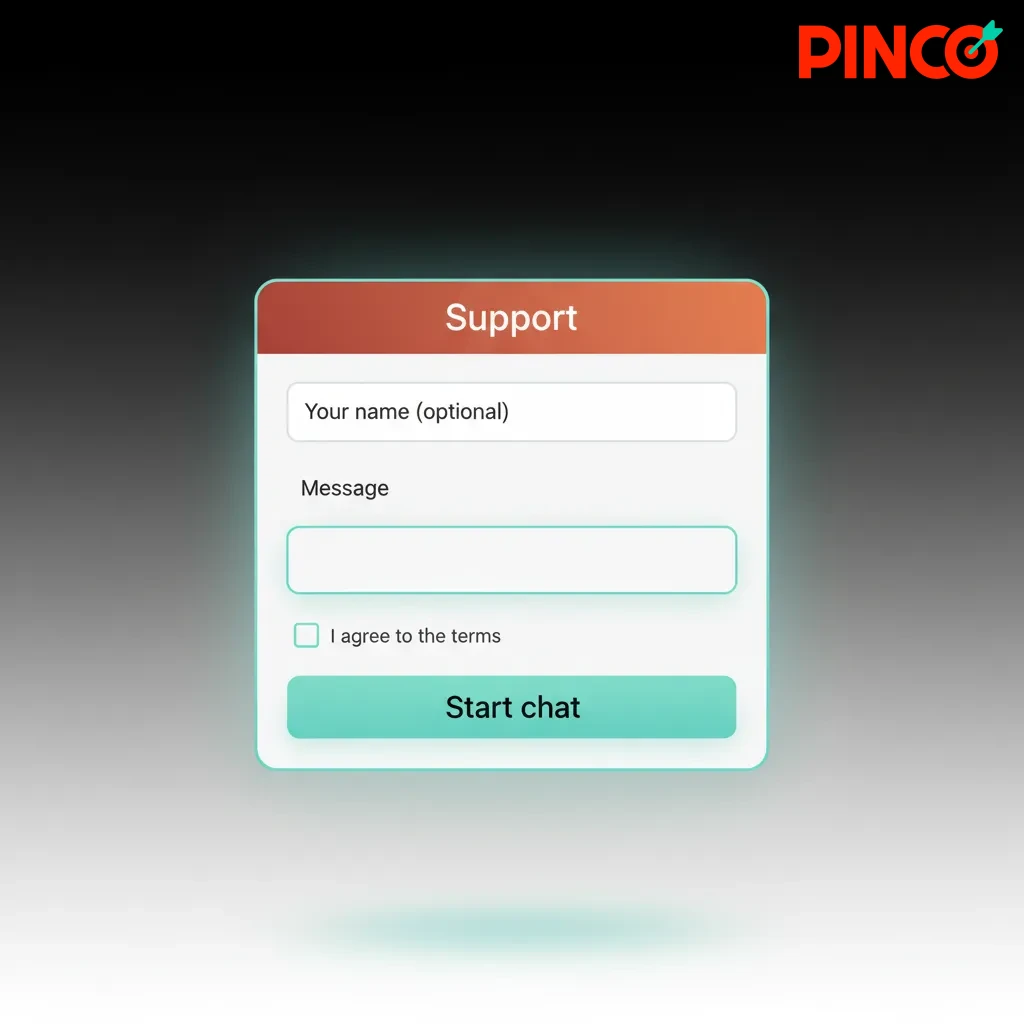
  1. Live chat: Open Help in the desktop app or on the website, available 24/7.
  2. Email: Use the Contact Us form in the app; replies arrive in your inbox.
  3. Help Centre: Browse FAQs and how-to guides inside the app.
  4. Social media: Message the official pages linked in the site footer.
  5. Phone: Not offered at this time.
Support options for desktop users in Canada: 24/7 live chat, email, Help Centre, social media; no phone support.

FAQ

Is the desktop app free to download?

Yes, there is no charge to install and use the client.

Do I need a new account for the PC app?

No, the same login works across the website, mobile, and desktop.

Can I play live casino and bet on sports in the app?

Yes, the full lobby is available, including live tables and pre-match or in-play markets.

Are the system requirements high?

Most modern computers running Windows 10/11 or macOS 11+ with 4 GB RAM are fine.

How do I set responsible gambling limits?

Go to Account > Limits in the app and choose daily, weekly, or monthly controls.

Updated: