
1
Access Your Pinco Account Anytime
Log in to your Pinco account using your registered email and password through the official website or mobile app. The login process takes seconds, and you can access your account 24/7 after completing registration and verification. Your personal information is protected by encryption and optional two-factor authentication. Once logged in, you can place sports bets, play casino games, claim bonuses, and manage deposits and withdrawals.
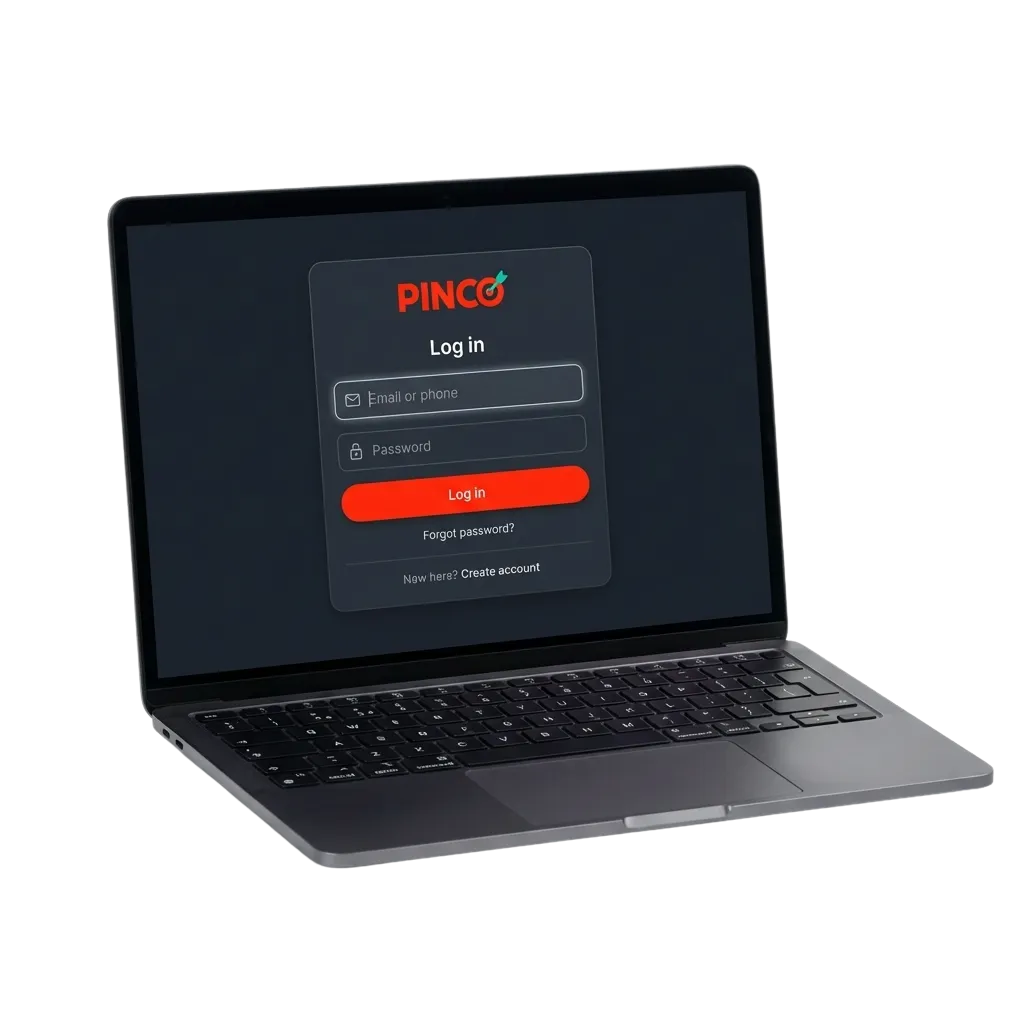
How to Log In to Your Account
You can access your Pinco account through multiple login methods depending on your preference and device. Available options include: email and password, mobile number and password, one-click login via saved credentials, and social media accounts linked during registration.
Email Login Method
This is the most common way to sign in and works on all devices. You’ll need the email address you registered with and your chosen password. Here’s how to complete the login:
- Navigate to the login page on the official website or open the mobile app
- Enter your registered email address in the first field
- Type your password in the second field
- Click the “Log In” button to access your account
Logging In Through the Mobile App
The mobile app offers faster login compared to the browser version because it saves your credentials and supports biometric authentication on supported devices. Follow these steps to sign in via the app:
2
Open the app and tap the “Log In” button on the main screen
3
Enter your email or mobile number and password, or use your saved credentials if you enabled this option
4
If you set up fingerprint or face recognition, use biometric login instead of typing your password
5
Login
Tap “Sign In” to access your profile and start playing
Common Login Issues and How to Fix Them
Some users encounter technical or account-related problems when trying to sign in. Below are the most frequent issues and their solutions.
| Problem | Solution |
|---|---|
| Incorrect password error | Check that Caps Lock is off and you’re typing the correct password. Use the “Forgot Password” link if you can’t remember it. |
| Account locked or suspended | Contact customer support through live chat or email to verify your account status and resolve any security concerns. |
| Page won’t load or app crashes | Clear your browser cache or update the app to the latest version. Try switching between Wi-Fi and mobile data. |
| Email not recognized | Verify you’re using the same email address you registered with. Check for typos or extra spaces. |
| Two-factor authentication code not working | Make sure you’re entering the code before it expires. Request a new code if the current one doesn’t work. |
Resetting Your Password
If you’ve forgotten your password, you can reset it in a few minutes using your registered email or phone number. The system will send you a verification code or link to create a new password. Follow these steps:
1
Click the “Forgot Password” link on the login page
2
Enter your registered email address or mobile number
3
Check your inbox or messages for a verification code or reset link
4
Follow the instructions to create a new password
5
Log in using your new credentials
FAQ
Can I stay logged in on multiple devices?
Yes, you can remain signed in on your phone, tablet, and computer at the same time. The platform doesn’t limit simultaneous sessions across different devices.
Do I need to verify my account before logging in?
You can log in immediately after registration, but you’ll need to complete verification before making your first withdrawal. Upload your ID and proof of address through your profile settings.
What should I do if I can’t receive the password reset email?
Check your spam or junk folder first. If you still don’t see it, contact support to verify your email address on file or request a manual reset.
Can I change my login email after registration?
Yes, you can update your email address in the account settings section. You’ll need to verify the new email before it becomes active.
Is my login information secure?
Your credentials are encrypted and stored securely. You can add two-factor authentication for extra protection. Never share your password with anyone.
Updated: